Best Docking Stations 2027: Top 5 Picks Compared
Choosing the best docking station comes down to fit: your laptop, your monitors, and how you work every day. Listings can look similar, but real differences show up in compatibility (especially Mac vs Windows), charging power, multi-monitor behavior, and whether drivers/software are required.
This SelectRanker comparison focuses on the checks that prevent regret purchases: which dock fits your setup, what to verify before checkout, and the tradeoffs you’re accepting (port selection, multi-monitor limits, and long-term usability).
If you’re also shopping for a new device, start with Best Laptop or Best Tablet, then come back and match the dock to the ports and display features your device actually supports.
Top 3 Docking Stations
Compare the first three reviewed products at a glance.
Disclosure: As an Amazon Associate, SelectRanker may earn from qualifying purchases. We may also earn from other affiliate links. This does not change what we recommend or how we compare products.
#1

Anker Laptop Docking Station Dual Monitor, 8-in-1 USB C Hub with 4K HDMI
Editor's Pick
Our top-three picks Rating
Best for
Everyday USB-C laptop setups that need a simple dual-display desk hub
Key feature
Compact 8-in-1 hub-style dock for quick desk connectivity without a bulky base
#2
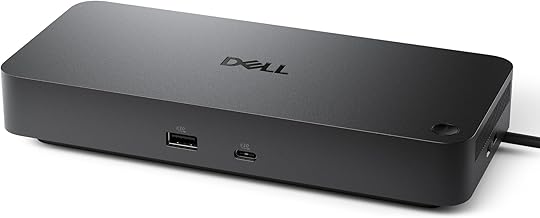
Dell Pro Laptop Docking Station WD25, USB-C, 100W, DisplayPort, HDMI
Strong Choice
Our top-three picks Rating
Best for
Work laptops where you want a brand-matched USB-C dock with power delivery
Key feature
Single-cable desk docking with power delivery plus DisplayPort/HDMI options
#3

Baseus Spacemate Nomos Air Docking Station 12-in-1 for Dual Monitor Windows | 2 x HDMI 4K@60Hz, 4 x USB-C/A 10Gbps, Ethernet 1 Gbps, 100W PD, SD/TF, Compatible with Laptops Dell/HP/Mac/Lenovo/Acer
Featured Pick
Our top-three picks Rating
Best for
Port-heavy home offices that want lots of connections for a dual-monitor Windows setup
Key feature
12-in-1 port selection that’s built around dual-monitor workflows and wired accessories
This page compares 5 product options, focused on real buying decisions:
- Use-case and fit, including desk setup vs travel, how many displays you need, which ports you actually use, and whether you want a compact hub or a full desk dock
- Performance and compatibility, including USB-C vs USB-A host connection, charging/power delivery, monitor connections (HDMI/DisplayPort), Ethernet, and OS limitations that affect multi-monitor setups
- Ownership risk, including driver/software dependence (when applicable), cable/adapter needs, heat and desk clutter, warranty/support expectations, and return-friendliness if it doesn’t behave with your specific laptop
SelectRanker connects each comparison to the most relevant category hub, related product comparisons, and practical buying guides so you can check the wider context before ordering.
Best Docking Stations 2027: Top 5 Picks Compared
| Image | Product | Best for | Key feature | View on Amazon |
|---|---|---|---|---|
| Anker Laptop Docking Station Dual Monitor, 8-in-1 USB C Hub with 4K HDMIAnker Laptop Docking Station Dual Monitor, 8-in-1 USB C Hub with 4K HDMI | Everyday USB-C laptop setups that need a simple dual-display desk hub | Compact 8-in-1 hub-style dock for quick desk connectivity without a bulky base | View on Amazon |
| Dell Pro Laptop Docking Station WD25, USB-C, 100W, DisplayPort, HDMIDell Pro Laptop Docking Station WD25, USB-C, 100W, DisplayPort, HDMI | Work laptops where you want a brand-matched USB-C dock with power delivery | Single-cable desk docking with power delivery plus DisplayPort/HDMI options | View on Amazon |
| Baseus Spacemate Nomos Air Docking Station 12-in-1 for Dual Monitor Windows | 2 x HDMI 4K@60Hz, 4 x USB-C/A 10Gbps, Ethernet 1 Gbps, 100W PD, SD/TF, Compatible with Laptops Dell/HP/Mac/Lenovo/AcerBaseus Spacemate Nomos Air Docking Station 12-in-1 for Dual Monitor Windows | 2 x HDMI 4K@60Hz, 4 x USB-C/A 10Gbps, Ethernet 1 Gbps, 100W PD, SD/TF, Compatible with Laptops Dell/HP/Mac/Lenovo/Acer | Port-heavy home offices that want lots of connections for a dual-monitor Windows setup | 12-in-1 port selection that’s built around dual-monitor workflows and wired accessories | View on Amazon |
 | Plugable USB C Triple Display Docking Station | 100W PD, 3X HDMIPlugable USB C Triple Display Docking Station | 100W PD, 3X HDMI | Users who specifically want triple-display output from one dock (and will accept driver/software setup if needed) | Triple HDMI display capability for multi-monitor desks that need three screens | View on Amazon |
 | Plugable USB 3.0 Universal Laptop Docking Station, Dual HDMI MonitorPlugable USB 3.0 Universal Laptop Docking Station, Dual HDMI Monitor | Older laptops or mixed fleets that need a universal USB dock for dual monitors | USB 3.0 universal docking approach for broad compatibility across many laptops | View on Amazon |
1) Anker Laptop Docking Station Dual Monitor, 8-in-1 USB C Hub with 4K HDMI — Everyday USB-C laptop setups that need a simple dual-display desk hub
This is the “start here” pick when you want a straightforward way to connect monitors and core desk accessories without committing to a large, power-brick-style dock.
Best for: Everyday USB-C laptop setups that need a simple dual-display desk hub
Key feature: Compact 8-in-1 hub-style dock for quick desk connectivity without a bulky base
Watch for: confirm your laptop’s USB-C capabilities (data vs video output), your monitor inputs (HDMI vs DP), and whether your OS/device supports the dual-display mode you want—especially if you’re on Mac.
🧐 Quick verdict: Best baseline pick when you want a clean, compact dock-like hub that covers the most common desk needs.
| Pros ✅ | Cons ⚠️ |
|---|---|
| ✅ Compact footprint for desks that don’t want a bulky dock | ⚠️ Multi-monitor behavior depends on your laptop/OS support |
| ✅ Good “everyday desk” port mix for common accessories | ⚠️ You may still need specific cables/adapters for your monitors |
| ✅ Simple starting point for a docking station comparison | ⚠️ Verify power/charging expectations and what’s included in the box |
Why it’s a top pick: For most buyers, the “best docking station 2027” isn’t the one with the longest port list. Instead, it’s the one that reliably connects the displays and peripherals you use every day with minimal clutter and minimal setup friction.
Decision bullets
- Use-case check: decide if you want a compact hub you can toss in a bag sometimes, or a heavier desk dock that stays put.
- Display check: confirm your laptop supports video over USB-C (and what it supports) and that your monitor inputs match the dock outputs. If you’re unsure what your displays need, use Monitor Resolution Refresh Rate Guide.
- Port check: list the accessories you plug in daily (keyboard, mouse, webcam, Ethernet, storage) and make sure you’re not buying adapters immediately.
SelectRanker tip: If you’re not sure what your laptop can output, check its specs first—especially the USB-C port type. See Laptop Specs Guide.
2) Dell Pro Laptop Docking Station WD25, USB-C, 100W, DisplayPort, HDMI — Work laptops where you want a brand-matched USB-C dock with power delivery
This is a smart pick when you’re outfitting a work desk and want a more “traditional docking station” experience. With one cable to the laptop, your monitors and accessories stay connected, and charging is handled through the dock.
Best for: Work laptops where you want a brand-matched USB-C dock with power delivery
Key feature: Single-cable desk docking with power delivery plus DisplayPort/HDMI options
Watch for: confirm your laptop’s USB-C/Thunderbolt capabilities and any IT/enterprise requirements (managed laptops may restrict drivers or firmware updates). Also confirm which monitor connection you’ll use (DP vs HDMI) so you buy the right cables.
🧐 Quick verdict: Best alternative when you want a work-desk dock style with power delivery and common office display connections.
| Pros ✅ | Cons ⚠️ |
|---|---|
| ✅ Built for a consistent “dock at the desk” workflow | ⚠️ Best results depend on laptop compatibility and permitted updates |
| ✅ Convenient monitor connectivity choices for office setups | ⚠️ You still need to match cables/adapters to your monitors |
| ✅ Helpful if you want charging and peripherals handled through one connection | ⚠️ Verify what’s included (power supply/cables) and return terms |
Why it’s a top pick: If your priority is a stable office docking routine (plug in once, everything works), a desk-style dock with charging and dedicated display ports can be a better match than a compact travel hub.
Decision bullets
- Use-case check: best for a fixed desk where the dock stays connected to monitors, Ethernet, and peripherals.
- Tradeoff check: you gain desk convenience, but you may give up portability and you must match your laptop’s capabilities carefully.
- Compatibility check: confirm your laptop supports the display setup you want. If you’re using a webcam, make sure your dock has the ports you need; see Webcam Resolution Frame Rate Guide.
SelectRanker tip: For work laptops, don’t assume “USB-C” means the same thing across models. Instead, verify whether your USB-C port supports video output and the number of external displays you need.
3) Baseus Spacemate Nomos Air Docking Station 12-in-1 for Dual Monitor Windows | 2 x HDMI 4K@60Hz, 4 x USB-C/A 10Gbps, Ethernet 1 Gbps, 100W PD, SD/TF, Compatible with Laptops Dell/HP/Mac/Lenovo/Acer — Port-heavy home offices that want lots of connections for a dual-monitor Windows setup
This is the shortlist pick when your desk has a lot going on: multiple USB accessories, wired networking, media cards, and dual monitors. One dock can centralize it all.
Best for: Port-heavy home offices that want lots of connections for a dual-monitor Windows setup
Key feature: 12-in-1 port selection that’s built around dual-monitor workflows and wired accessories
Watch for: confirm your laptop and OS support your intended dual-display mode, and verify which ports are for data vs display vs charging. When you’re mixing older monitors, plan your cables/adapters before checkout.
🧐 Quick verdict: Best when you want one dock to handle “everything on the desk” without constantly swapping cables.
| Pros ✅ | Cons ⚠️ |
|---|---|
| ✅ Strong choice for accessory-heavy desks (USB + Ethernet + cards) | ⚠️ More ports means more to verify (what’s data vs display vs charging) |
| ✅ Built around a dual-monitor, plug-in-and-work workflow | ⚠️ Dual-display support still depends on your laptop and OS |
| ✅ Helpful if you hate dongle chains and desk clutter | ⚠️ Make sure your cable plan matches your monitors’ inputs |
Why it’s a top pick: A “top docking station” for a busy home office isn’t just about displays. It’s also about reducing friction across everything you plug in. When you constantly swap drives, audio gear, a webcam, or Ethernet, a port-rich dock can be a major quality-of-life upgrade.
Decision bullets
- Performance check: decide what matters more—more ports for accessories, or a simpler dock with fewer things to configure.
- Compatibility check: confirm the dock’s dual-monitor approach matches your laptop/OS. If you’re unsure what your machine supports, start with Laptop Specs Guide.
- Workflow check: plan your desk layout (cable routing, where the dock sits, and which ports you use daily vs occasionally).
SelectRanker tip: A port-rich dock is only “better” if it replaces adapters you actually use. List your daily plugs before you buy.
4) Plugable USB C Triple Display Docking Station | 100W PD, 3X HDMI — Users who specifically want triple-display output from one dock (and will accept driver/software setup if needed)
This pick is about one thing: running three external displays from a single docking station. If your workflow is spreadsheets + chat + reference screens, or you’re building a multi-monitor productivity desk, this is the specialized option on the list.
Best for: Users who specifically want triple-display output from one dock (and will accept driver/software setup if needed)
Key feature: Triple HDMI display capability for multi-monitor desks that need three screens
Watch for: triple-display docks often rely on specific software/driver approaches and can behave differently across Windows vs macOS. Before you order, confirm OS support, your laptop’s display limits, and your target resolutions/refresh rates. Use Monitor Resolution Refresh Rate Guide to sanity-check your display goals.
🧐 Quick verdict: Best fit-focused choice when “three monitors” is the requirement and you’re willing to do the compatibility homework.
| Pros ✅ | Cons ⚠️ |
|---|---|
| ✅ Purpose-built for triple-display desks | ⚠️ Triple-display setups can require drivers/software and careful OS matching |
| ✅ Simplifies a multi-monitor workspace into one dock connection | ⚠️ Resolution/refresh behavior can vary by laptop GPU and OS |
| ✅ Good option when your workflow truly benefits from 3 screens | ⚠️ More complex than a basic dual-display hub |
Why it’s a top pick: Most docks are built around one or two displays. When your buying intent is specifically “three external monitors,” you need a dock designed for that workflow. You also need to verify support details up front.
Decision bullets
- Fit check: confirm you have three available monitor inputs (HDMI) or a clear adapter plan.
- Capacity check: confirm your laptop and OS can actually drive three external displays the way you want (extended vs mirrored, resolution/refresh targets).
- Setup check: be comfortable with potential driver/software steps and IT restrictions on managed devices.
SelectRanker tip: If you’re buying this for a work laptop, confirm you’re allowed to install required software/updates before you commit.
5) Plugable USB 3.0 Universal Laptop Docking Station, Dual HDMI Monitor — Older laptops or mixed fleets that need a universal USB dock for dual monitors
This is the practical pick when you care more about broad compatibility than a USB-C-only approach. It’s also a common fit for shared spaces where different laptops rotate through the same desk.
Best for: Older laptops or mixed fleets that need a universal USB dock for dual monitors
Key feature: USB 3.0 universal docking approach for broad compatibility across many laptops
Watch for: universal USB docks can involve driver/software requirements and may not be ideal for demanding gaming or creative workflows. Before you buy, confirm OS support, display expectations, and whether your laptop can charge through the dock (many universal docks do not replace your laptop charger).
🧐 Quick verdict: Best value-style choice when compatibility across many laptops matters more than the cleanest USB-C-native setup.
| Pros ✅ | Cons ⚠️ |
|---|---|
| ✅ Useful for older laptops and mixed-device households/offices | ⚠️ May require drivers/software and has more performance limits than native USB-C docks |
| ✅ Dual-monitor desk docking without needing a USB-C video-capable port | ⚠️ Not the best match for demanding graphics workflows |
| ✅ Strong option when you prioritize practicality and broad support | ⚠️ Verify charging expectations and what cables you’ll still need |
Why it’s a top pick: A universal USB dock can be the best docking station for “real life” when you’re not sure what laptop will be used tomorrow. It’s also a sensible fallback when your current laptop doesn’t have the right USB-C features for a more modern dock.
Decision bullets
- Budget check: include any needed cables/adapters and consider whether you’ll still use your laptop’s charger.
- Use-case check: best for productivity setups; if you need high-refresh or color-critical creative work, verify expectations carefully.
- Risk check: confirm driver/software support for your OS and read recent docking station reviews for any recurring disconnect or sleep/wake complaints.
SelectRanker tip: Universal docks are often the easiest way to standardize a shared desk. However, they’re also easy to mis-buy if you assume they behave like a native USB-C/Thunderbolt dock.
How we evaluate best docking station options
The SelectRanker scoring lens
In a docking station comparison, the “best” choice is the one that works reliably with your devices and reduces daily friction. We focus on:
- Use-case match, including desk vs travel, number of monitors, and which ports you use daily (USB-A, USB-C, HDMI/DP, Ethernet, SD)
- Useful specifications, focusing on host connection type, display outputs, charging/power delivery expectations, and the practical port mix
- Compatibility and setup, including Windows vs macOS limitations, driver/software requirements (when applicable), and whether a managed work laptop will allow updates
- Usability and ownership, including cable clutter, heat/placement, how easy it is to dock/undock, and whether you’ll need extra adapters
- Ownership risk, including support clarity, return friendliness, and recurring “doesn’t wake from sleep / drops monitors” complaints that can ruin a dock experience
Before you buy: best docking station
Skip or slow down if these apply
Don’t buy this if…
- You haven’t confirmed what your laptop’s USB-C port supports (some are data-only; some support video; some support multiple displays).
- You don’t know how many external monitors you truly need (one, two, or three) and what inputs those monitors have.
- You’re shopping by port count alone without checking OS limitations (macOS vs Windows behavior can be very different).
- You’re on a managed work laptop and you haven’t confirmed whether driver/software installs or firmware updates are allowed.
- The listing is unclear about what’s included (power supply, cables) and you’d be stuck buying adapters immediately.
Good signs you are ready to buy
Buy this if…
- You know your laptop model and have checked its port capabilities in the spec sheet (or you’ve confirmed it supports the monitor setup you want).
- You’ve mapped your monitor inputs (HDMI/DP/USB-C) and you know which cables you’ll use.
- You’ve listed the peripherals you want permanently connected (keyboard, mouse, webcam, speakers, Ethernet, storage).
- You want a clear shortlist for docking station 2027 shopping instead of guessing from listings.
Buyer’s guide to best docking station
Start with the buyer and real use case
Start by deciding what “docking” means for you: a travel-friendly hub you occasionally use, or a permanent desk dock that turns your laptop into a desktop replacement. From there, you can prioritize footprint, cable management, power delivery, and monitor connectivity.
Performance and features: compare what actually matters
Docking station listings are full of specs, but only a few decide satisfaction. Focus on the host connection type, how the dock handles multiple displays on your OS, and whether it replaces your charger. To align the dock to your monitors’ needs, use Monitor Resolution Refresh Rate Guide.
- Performance: focus on stable display output and the ports you’ll actually use daily.
- Capacity and size: choose enough ports for your peripherals without buying a huge dock you can’t place cleanly.
- Controls and usability: look for a setup that makes docking/undocking easy (and doesn’t force constant cable swaps).
- Portability and setup: travel hubs favor compactness; desk docks favor stability and cable management.
Compatibility, size, setup, and ecosystem
Compatibility is the #1 reason docks get returned. Before ordering, verify your laptop’s port type and display support, your OS limitations, and your monitor inputs. If you’re unsure what your laptop supports, start with Laptop Specs Guide.
If two products solve the same need differently, use the related SelectRanker comparison and buying guides supplied with the page to understand the tradeoff before buying.
Build quality, usability, and included accessories
For docks, “build quality” shows up as stable ports, solid cable connections, and predictable sleep/wake behavior. Before you order, check what’s included: power supply (if required), USB-C cable length, and whether you’ll need DP/HDMI cables or adapters to match your monitors.
Maintenance, recurring costs, parts, and ownership
Docks don’t have filters or blades, but ownership costs still show up as extra cables, adapters, and sometimes software/driver upkeep. Budget for the complete setup, not just the dock itself—especially for multi-monitor desks.
Warranty, returns, support, and long-term value
Because docking stations interact with many devices (laptop, OS, monitors, peripherals), return terms matter. Verify compatibility notes, support resources, and the return window before buying—especially if you’re building a new desk setup or upgrading monitors.
Decision table: buyer concern → what it means → what to check
| Concern | Likely cause | What to check before buying |
|---|---|---|
| Second monitor doesn’t work (or mirrors instead of extends) | Laptop/OS doesn’t support the intended multi-display mode over that port | Confirm your laptop’s USB-C/Thunderbolt capabilities and OS limitations; check monitor inputs and the dock’s outputs |
| Dock won’t charge the laptop (or charges slowly) | Dock doesn’t provide charging, or the laptop needs higher power than expected | Confirm whether the dock supports power delivery for your laptop and whether you still need the OEM charger |
| Random disconnects, sleep/wake issues, or flaky peripherals | Driver/software dependence, cable quality, port bandwidth limits, or power management quirks | Read recent docking station reviews for recurring patterns; verify driver requirements and use quality cables |
| Not enough ports for the desk setup | Port mix doesn’t match your actual peripherals | List your daily connections (USB-A/USB-C, Ethernet, audio, SD) and confirm the dock covers them without adapters |
| Monitors don’t match expected resolution/refresh rate | Dock/laptop/OS output limits, wrong cable type, or monitor input limitation | Verify target resolution/refresh and the correct cable standard; use Monitor Resolution Refresh Rate Guide |
| Setup is harder than expected | Triple-display or universal USB docks can require drivers and careful configuration | Confirm OS support, driver install permissions (work laptops), and whether you’re comfortable troubleshooting |
| The feature list feels confusing | Marketing terms hide real constraints (OS display rules, port capabilities) | Return to the basics: laptop port type, number of displays, monitor inputs, charging needs, and required software |
Use the related SelectRanker guides below for deeper category-specific sizing, fit, compatibility, setup, maintenance, and ownership questions.
Common mistakes and quick wins
Quick wins before you buy
- Identify your “monitor truth.” Write down how many external displays you need and what inputs they have (HDMI/DP/USB-C). This prevents many wrong buys.
- Check the laptop port type. “USB-C” can mean data-only or full video + charging. Verify in your laptop specs first: Laptop Specs Guide.
- Plan cables and adapters. Even the best dock can disappoint if you don’t have the right DP/HDMI cables for your monitors.
- Read the bad reviews with a filter. Look for repeated themes: monitor dropouts, sleep/wake issues, driver friction, or “doesn’t work on my Mac/Windows setup.”
Common mistakes
- Assuming any USB-C port supports two or three external monitors.
- Buying a triple-display dock without confirming OS support and install permissions for required software.
- Choosing by port count while ignoring the ports you actually use (Ethernet vs extra USB, DP vs HDMI).
- Forgetting to budget for cables/adapters and then blaming the dock for a cable mismatch.
- Ignoring return terms for a product category where compatibility surprises are common.
For deeper context, continue with the related SelectRanker guides covering sizing, specifications, compatibility, setup, maintenance, and closely related product comparisons for this topic.
Related SelectRanker guides
- Explore the broader SelectRanker category guide for this product type: Best Products hub
- Browse more tech picks and comparisons: Tech hub
- See more computer and display gear guides: Computers Displays hub
- Choosing a device first? Start here: Best Laptop and Best Tablet
- Spec check before you buy: Laptop Specs Guide
- Monitor matching help: Monitor Resolution Refresh Rate Guide
- Webcam planning for meetings: Webcam Resolution Frame Rate Guide
FAQs
1) What should buyers prioritize for the best docking station?
Prioritize compatibility first: your laptop’s USB-C/Thunderbolt capabilities, your OS (Windows vs macOS), and your monitor inputs. Next, choose the port mix you actually use (Ethernet, USB-A/USB-C, SD). Finally, decide whether you need charging through the dock or you’re fine using your normal charger.
2) Do all USB-C docks support two external monitors?
No. Two-monitor support depends on your laptop’s USB-C port features and your operating system. Some laptops support only one external display over certain USB-C modes, and macOS vs Windows can behave differently. Before you buy, verify external display support for your exact laptop model.
3) Is a “triple display” docking station always the best choice for productivity?
Only if you truly benefit from three screens and your laptop/OS supports the intended triple-display setup. In practice, triple-display docks can add complexity (drivers/software and more troubleshooting). For many desks, a reliable dual-monitor dock with the right port mix is the lower-friction choice.
4) What compatibility checks should I make before buying a docking station?
Check (1) your laptop port type and capabilities, (2) your OS and any work/IT restrictions, (3) your monitor inputs (HDMI/DP/USB-C), (4) whether you need charging through the dock, and (5) whether you have the right cables/adapters. If you’re unsure about laptop ports, use Laptop Specs Guide.
5) Will a docking station improve gaming or creative performance?
A dock can improve convenience (more ports and easier multi-monitor setup), but it won’t upgrade your laptop’s CPU/GPU. For gaming or creative work, confirm the monitor resolution/refresh you want and verify your laptop can drive it. Use Monitor Resolution Refresh Rate Guide to match expectations.
6) Should I buy a universal USB dock or a USB-C dock?
Choose a USB-C dock/hub when your laptop supports video over USB-C and you want a more direct, modern setup. Choose a universal USB dock when you need broad compatibility across older laptops or a mixed fleet. Just expect possible driver/software requirements and more limits.
7) What’s the most common reason docking stations get returned?
Display expectations. Many buyers assume their laptop can run two or three external monitors the way they want, but the laptop/OS limitations don’t match the dock. To avoid that, verify external display support for your exact laptop model before ordering.
8) What should I check right before ordering a dock?
Confirm your laptop’s port capabilities, your monitor inputs, whether you need charging through the dock, any driver/software requirements, and what cables/adapters are included vs required. Also scan recent docking station reviews for repeated issues like monitor dropouts or sleep/wake problems.
Final verdict on best docking station
If you want the safest first choice, start with Pick #1 because it gives you a clean baseline for everyday desk connectivity with a compact footprint.
Choose Pick #2 when you want a more traditional work-desk dock experience with power delivery and common office display connections.
Choose Pick #3 when your desk needs lots of ports and you want one dock to centralize a dual-monitor Windows-style workflow.
Choose Pick #4 when three external displays is the requirement and you’re willing to verify OS/driver support carefully.
Choose Pick #5 when broad compatibility (including older laptops or mixed devices) matters more than a USB-C-native setup.
For more context, continue with the related SelectRanker category hub and guides listed above.