Best Gaming Monitors 2027: Top 5 Picks Compared
Best gaming monitor picks for your PC, console, and desk setup
The best gaming monitor for you depends less on hype and more on the details that shape day-to-day satisfaction: your GPU/console output, the games you play, your desk distance, the refresh rate you can actually drive, and the ports you need.
In this SelectRanker roundup, we keep it practical with a clean gaming monitor comparison across five real options. Along the way, you’ll get quick fit checks that help you avoid common issues like choosing the wrong resolution for your hardware, missing a key port, or ending up with a stand that doesn’t work for your setup.
If you want more context before you buy, jump to the related hubs and guides: Best Products hub • Tech hub • Computers Displays hub • Monitor Resolution Refresh Rate Guide
Top 3 Gaming Monitors
Compare the first three reviewed products at a glance.
Disclosure: As an Amazon Associate, SelectRanker may earn from qualifying purchases. We may also earn from other affiliate links. This does not change what we recommend or how we compare products.
#1

Acer Nitro XV272U X2bmiiprx 27" Gaming Monitor
Editor's Pick
Our top-three picks Rating
Best for
Best overall balance for most PC gamers (1440p-class sweet spot shoppers)
Key feature
27-inch “sweet spot” size for sharpness + speed in a single screen
#2

Dell 27 240Hz Gaming Monitor – SE2726HG – 27-inch FHD (1920×1080) 240Hz Display, in-Plane Switching (IPS) Technology, AMD FreeSync Premium, TÜV 3-Star, 2X HDMI, DisplayPort 1.4, Tilt
Strong Choice
Our top-three picks Rating
Best for
Competitive FPS and high-refresh esports setups
Key feature
240Hz refresh rate for smoother tracking and lower perceived blur
#3

Samsung 27-Inch Odyssey G5 G50D QHD Gaming Monitor LS27DG500ENXZA, 180Hz, 1ms GtG, HDR 400, G-Sync Compatible, Height Adjustable Stand, Bundle with Deco Gear HDMI Cable & Screen Savvy Guidebook
Featured Pick
Our top-three picks Rating
Best for
1440p upgrade buyers who want a more premium-feeling setup
Key feature
Height-adjustable stand for easier ergonomic dialing-in
This page compares 5 product options, focused on real buying decisions:
- Use-case and fit, including PC vs console use, desk distance, screen size preference, VESA mounting needs, and how competitive vs cinematic games change the “right” specs
- Performance and compatibility, including resolution vs refresh-rate tradeoffs, VRR support (FreeSync/G-Sync compatibility), response-time expectations, and the ports/cables you’ll actually use
- Ownership risk, including stand ergonomics, return difficulty for large panels, dead-pixel policies, included accessories, and what to verify on the listing before ordering
SelectRanker connects each comparison to the most relevant category hub, related product comparisons, and practical buying guides. That way, you can check the wider context before ordering.
Best Gaming Monitors 2027: Top 5 Picks Compared
| Image | Product | Best for | Key feature | View on Amazon |
|---|---|---|---|---|
| Acer Nitro XV272U X2bmiiprx 27" Gaming MonitorAcer Nitro XV272U X2bmiiprx 27" Gaming Monitor | Best overall balance for most PC gamers (1440p-class sweet spot shoppers) | 27-inch “sweet spot” size for sharpness + speed in a single screen | View on Amazon |
| Dell 27 240Hz Gaming Monitor – SE2726HG – 27-inch FHD (1920×1080) 240Hz Display, in-Plane Switching (IPS) Technology, AMD FreeSync Premium, TÜV 3-Star, 2X HDMI, DisplayPort 1.4, TiltDell 27 240Hz Gaming Monitor – SE2726HG – 27-inch FHD (1920×1080) 240Hz Display, in-Plane Switching (IPS) Technology, AMD FreeSync Premium, TÜV 3-Star, 2X HDMI, DisplayPort 1.4, Tilt | Competitive FPS and high-refresh esports setups | 240Hz refresh rate for smoother tracking and lower perceived blur | View on Amazon |
| Samsung 27-Inch Odyssey G5 G50D QHD Gaming Monitor LS27DG500ENXZA, 180Hz, 1ms GtG, HDR 400, G-Sync Compatible, Height Adjustable Stand, Bundle with Deco Gear HDMI Cable & Screen Savvy GuidebookSamsung 27-Inch Odyssey G5 G50D QHD Gaming Monitor LS27DG500ENXZA, 180Hz, 1ms GtG, HDR 400, G-Sync Compatible, Height Adjustable Stand, Bundle with Deco Gear HDMI Cable & Screen Savvy Guidebook | 1440p upgrade buyers who want a more premium-feeling setup | Height-adjustable stand for easier ergonomic dialing-in | View on Amazon |
 | 34 Inch WQHD 2K Ultrawide Curved Gaming Monitor, 3440 x 1440, 240Hz34 Inch WQHD 2K Ultrawide Curved Gaming Monitor, 3440 x 1440, 240Hz | Ultrawide immersion for racing, sims, and single-player worlds | 34-inch curved ultrawide format for a wider field of view | View on Amazon |
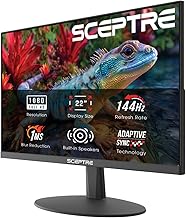 | Sceptre New 22-Inch Gaming Monitor, FHD 1080p, Up to 144Hz, HDMI, DisplayPort, Built-in Speakers, Machine Black (E225W-FW144 Series, 2026)Sceptre New 22-Inch Gaming Monitor, FHD 1080p, Up to 144Hz, HDMI, DisplayPort, Built-in Speakers, Machine Black (E225W-FW144 Series, 2026) | Budget gaming desks, dorms, and smaller spaces | Up to 144Hz at a smaller 22-inch footprint | View on Amazon |
1) Acer Nitro XV272U X2bmiiprx 27" Gaming Monitor — Best overall balance for most PC gamers (1440p-class sweet spot shoppers)
This is the “start here” choice for most buyers shopping for a top gaming monitor without overthinking it. It’s especially appealing if you want a modern PC gaming experience that balances sharpness, speed, and desk-friendly sizing.
Best for: Best overall balance for most PC gamers (1440p-class sweet spot shoppers)
Key feature: 27-inch “sweet spot” size for sharpness + speed in a single screen
Watch for: confirm the exact resolution/refresh-rate mode you’ll run, your GPU output (and cable type), whether you need height adjust, and whether you’ll use VESA mounting instead of the included stand.
🧐 Quick verdict: A clean baseline pick that makes it easy to compare every other “gaming monitor 2027” option.
| Pros ✅ | Cons ⚠️ |
|---|---|
| ✅ Strong all-around match for resolution + refresh priorities | ⚠️ Verify ports/cables match your PC or console output |
| ✅ 27-inch size fits most desks and viewing distances well | ⚠️ Stand ergonomics vary—confirm height/tilt needs |
| ✅ Solid “one monitor does most things” shortlist anchor | ⚠️ You still need to confirm VRR support and settings for your device |
Why it’s a top pick: For many shoppers, the “best gaming monitor 2027” decision comes down to a comfortable middle ground. You want sharpness for everyday use and single-player games, plus enough speed for competitive play, all in a size that fits a normal desk. This pick is our best overall starting point for that balance.
Decision bullets
- Use-case check: decide whether you’re prioritizing competitive FPS (speed first) or story/sim games (immersion and clarity).
- Hardware check: make sure your GPU/console can realistically hit the refresh rates you’re paying for at the resolution you plan to use.
- Desk/setup check: confirm stand adjustability or plan for VESA mounting, and measure viewing distance for a comfortable 27-inch setup.
SelectRanker tip: If you’re torn between 1080p high-refresh and 1440p, use this pick as the reference point. Then sanity-check your GPU performance and the ports/cables you’ll run. The guide here helps: Monitor Resolution Refresh Rate Guide.
2) Dell 27 240Hz Gaming Monitor – SE2726HG – 27-inch FHD (1920×1080) 240Hz Display, in-Plane Switching (IPS) Technology, AMD FreeSync Premium, TÜV 3-Star, 2X HDMI, DisplayPort 1.4, Tilt — Competitive FPS and high-refresh esports setups
This is the pick for players who want to lean into speed. It suits buyers who play shooters, run lower graphics settings on purpose, and care about smooth tracking more than extra pixels.
Best for: Competitive FPS and high-refresh esports setups
Key feature: 240Hz refresh rate for smoother tracking and lower perceived blur
Watch for: confirm your PC can output 240Hz at the resolution you’ll use, and verify you have the right port/cable. Also check that your GPU supports the needed display standard for high refresh.
🧐 Quick verdict: The “frames first” choice—best when competitive FPS is the main job.
| Pros ✅ | Cons ⚠️ |
|---|---|
| ✅ Designed around high-refresh competitive play priorities | ⚠️ You may not benefit without a PC that can sustain high FPS |
| ✅ Strong option when smoothness matters more than resolution | ⚠️ Double-check ports/cables and console limitations |
| ✅ Helps simplify the choice: optimize for your main game type | ⚠️ Ergonomics can be a deciding factor—verify stand adjustability needs |
Why it’s a top pick: If your real goal is competitive FPS performance, pick around refresh rate, VRR behavior, and motion clarity. In contrast, the flashiest “gaming monitor reviews” marketing terms rarely tell you what it will feel like in-game. This model is positioned for the high-refresh use case.
Decision bullets
- FPS reality check: look at the frame rates you actually get in your main games at your chosen settings.
- Connection check: verify which port you’ll use (HDMI vs DisplayPort) and whether your device supports the refresh rate you want.
- Comfort check: if you game for hours, confirm tilt/height needs or plan on a monitor arm.
SelectRanker tip: High refresh is most valuable when your system can feed it. If you’re currently GPU-limited, a 1440p upgrade (Pick #3) may feel like a bigger overall improvement.
3) Samsung 27-Inch Odyssey G5 G50D QHD Gaming Monitor LS27DG500ENXZA, 180Hz, 1ms GtG, HDR 400, G-Sync Compatible, Height Adjustable Stand, Bundle with Deco Gear HDMI Cable & Screen Savvy Guidebook — 1440p upgrade buyers who want a more premium-feeling setup
This pick fits buyers moving up from older 1080p screens (or basic office monitors). It aims for a clearer, more “modern” look without forcing a huge panel or a complicated multi-monitor setup.
Best for: 1440p upgrade buyers who want a more premium-feeling setup
Key feature: Height-adjustable stand for easier ergonomic dialing-in
Watch for: verify the exact inputs you’ll use, confirm whether the included bundle items matter to you, and check that your GPU can drive 1440p at the refresh rates you expect in your games.
🧐 Quick verdict: Best when you want a noticeable everyday upgrade—sharper image plus a nicer ergonomic setup.
| Pros ✅ | Cons ⚠️ |
|---|---|
| ✅ Strong “step up” choice for 1440p shoppers | ⚠️ 1440p is more demanding—confirm GPU performance headroom |
| ✅ Ergonomic stand adjustability can improve long sessions | ⚠️ Bundled extras may not add value if you already have cables |
| ✅ Good fit for mixed use: gaming + everyday PC tasks | ⚠️ Confirm VRR behavior and settings compatibility with your device |
Why it’s a top pick: A good upgrade should deliver benefits you notice constantly—text clarity, game detail, and better ergonomics—without forcing a whole new setup. This option is positioned as that “better daily experience” 1440p-class move.
Decision bullets
- Resolution check: 1440p is often the best middle ground, but only if your GPU can keep frame rates where you want them.
- Ergonomics check: height adjustment is a big quality-of-life feature; if you use an arm, confirm VESA compatibility instead.
- Bundle check: confirm what’s included (cables/accessories) so you don’t pay extra for duplicates you won’t use.
SelectRanker tip: If you’re upgrading for both gaming and work/school, 1440p at 27 inches is a common “sweet spot” for sharpness without scaling hassles. Use this guide to align resolution and refresh expectations: Monitor Resolution Refresh Rate Guide.
4) 34 Inch WQHD 2K Ultrawide Curved Gaming Monitor, 3440 x 1440, 240Hz — Ultrawide immersion for racing, sims, and single-player worlds
This is the “go wide” pick for a more cinematic, wraparound feel in the right genres. Before you commit, make sure you have the desk space and the GPU power to support it.
Best for: Ultrawide immersion for racing, sims, and single-player worlds
Key feature: 34-inch curved ultrawide format for a wider field of view
Watch for: ultrawide resolutions are more demanding than standard 1440p. Confirm your GPU can drive your games, and verify the physical width will fit your desk (plus speaker/PC clearance).
🧐 Quick verdict: Best for immersion—worth it when your games and setup can take advantage of ultrawide.
| Pros ✅ | Cons ⚠️ |
|---|---|
| ✅ Ultrawide format can feel dramatically more immersive | ⚠️ Requires more GPU horsepower than standard 16:9 |
| ✅ Great fit for sims and multi-window productivity layouts | ⚠️ Not all games support ultrawide perfectly—check your titles |
| ✅ Curved design can improve perceived comfort at this width | ⚠️ Desk space, mounting, and return logistics matter more with big panels |
Why it’s a top pick: Ultrawide monitors aren’t “better” for everyone. Instead, they shine for specific play styles and setups. This pick earns its place by offering the immersive format many buyers want, as long as you do the desk-space and GPU-performance checks first.
Decision bullets
- Fit check: measure your desk width and depth, and consider where your keyboard/mouse will sit relative to the curve.
- Game support check: verify ultrawide support in your main titles (some games add black bars or UI quirks).
- Performance check: expect higher GPU load; confirm the output refresh rate and port/cable you’ll use.
SelectRanker tip: If you stream or use a webcam, ultrawide setups often change where you place the camera and lighting. If you’re upgrading your camera too, compare here: Webcam Resolution Frame Rate Guide.
5) Sceptre New 22-Inch Gaming Monitor, FHD 1080p, Up to 144Hz, HDMI, DisplayPort, Built-in Speakers, Machine Black (E225W-FW144 Series, 2026) — Budget gaming desks, dorms, and smaller spaces
This is the practical budget pick when you want a real gaming refresh rate upgrade but you’re working with limited space, a tighter budget, or a simple secondary setup.
Best for: Budget gaming desks, dorms, and smaller spaces
Key feature: Up to 144Hz at a smaller 22-inch footprint
Watch for: confirm the refresh rate you can achieve with your device and connection type. Also verify the stand/tilt range (or plan for VESA mounting if supported) to avoid awkward viewing angles on a small desk.
🧐 Quick verdict: A budget-friendly way to get into high refresh—especially for smaller desks and simpler setups.
| Pros ✅ | Cons ⚠️ |
|---|---|
| ✅ Smaller size works well for tight spaces and close viewing | ⚠️ Smaller screens can feel cramped for productivity |
| ✅ 144Hz-class refresh can be a big smoothness upgrade on a budget | ⚠️ Verify ports/cables and max refresh behavior for your device |
| ✅ Good value for secondary setups or casual competitive play | ⚠️ Budget models can have more compromises—check return policy carefully |
Why it’s a top pick: A budget monitor can still be the right choice when it covers your real needs: the refresh rate you’ll actually use, the ports you need, and a size that works for your desk. This one is positioned as a value-first entry to smoother gameplay.
Decision bullets
- Budget check: keep money aside for a better cable, a monitor arm, or speakers/headset if your setup needs them.
- Space check: 22 inches can be ideal up close, but measure your viewing distance so it doesn’t feel too small.
- Risk check: read the return policy and scan negative reviews for repeated issues like dead pixels, flicker, or fragile stands.
SelectRanker tip: If you’re buying a budget monitor for a laptop setup, confirm your laptop’s video output limits first (USB-C/HDMI version matters). See: Laptop Specs Guide and Best Laptop.
How we evaluate best gaming monitor options
The SelectRanker scoring lens
To recommend gaming monitor options that make sense for real buyers (not spec-sheet shoppers), we prioritize what changes your experience after the first week:
- Use-case match, including competitive vs immersive gaming, PC vs console use, desk distance, and whether the monitor is also for work/school
- Useful specifications, focusing on resolution/refresh balance, VRR support, panel behavior (viewing angles, motion handling), and brightness/HDR expectations without assuming marketing labels equal real results
- Compatibility and setup, including ports (HDMI/DisplayPort/USB-C where relevant), cable requirements, VESA mounting, stand adjustability, and GPU/console output limits
- Usability and ownership, including OSD controls, ergonomics, glare handling, footprint, heat/noise expectations (if any), and general day-to-day convenience
- Ownership risk, including return difficulty for large displays, warranty/dead-pixel policy clarity, and repeated buyer complaints that suggest quality-control issues
Before you buy: best gaming monitor
Skip or slow down if these apply
Don’t buy this if…
- You haven’t decided whether you’re optimizing for competitive FPS (higher refresh) or immersion/work (higher resolution and screen real estate).
- You haven’t checked what your GPU/console can output (resolution + refresh) and which port you’ll use to get it.
- You haven’t measured your desk and viewing distance—size and curvature can be amazing or annoying depending on space.
- The listing is unclear about return rules, warranty coverage, or dead-pixel policy (important for monitors).
- You’re relying on one headline term (like “1ms” or “HDR”) without checking the full spec context and real-world limitations.
Good signs you are ready to buy
Buy this if…
- You know your main games and whether you care more about frame rate smoothness or sharper detail.
- You’ve confirmed your device output (ports + supported refresh rate) and you’re prepared to use the correct cable.
- You’ve checked desk space, stand ergonomics (height/tilt), and whether you’ll mount via VESA.
- You want a short, practical shortlist instead of scrolling through endless gaming monitor reviews.
Buyer’s guide to best gaming monitor
Start with the buyer and real use case
The right monitor depends on what you play and how you sit. Competitive shooters reward high refresh and a low-latency feel, while RPGs, open-world games, and productivity benefit more from resolution, screen size, and comfortable ergonomics. Meanwhile, your desk depth and viewing distance decide whether 22, 27, or 34 inches will feel “right.”
Performance and features: compare what actually matters
For a gaming monitor 2027 purchase, the best spec is the one you can use. A huge refresh rate won’t help if your system can’t hit those frame rates, and higher resolution can backfire if it forces settings you don’t enjoy. Instead, compare performance in the context of your hardware and games.
- Performance: match refresh rate to the frame rates you can sustain in your main games.
- Capacity and size: match screen size to desk depth and viewing distance; ultrawide needs more width and often more GPU.
- Controls and usability: look for ergonomic stand features (especially height) or plan for a monitor arm.
- Portability and setup: check ports and cable requirements; incorrect cables are a common reason buyers miss expected refresh rates.
Compatibility, size, setup, and ecosystem
Before ordering, verify the details that can turn a “best gaming monitor” pick into a hassle: HDMI/DisplayPort versions, console limitations, VRR support, VESA mounting pattern, stand footprint, and whether your desk can handle the width/depth—especially for ultrawide.
If two products solve the same need differently, use the related SelectRanker comparison and buying guides supplied with the page. That extra context makes the tradeoff clearer before you buy.
Build quality, usability, and included accessories
Monitors are “live with it every day” products. Pay attention to stand stability, adjustment range, button/joystick controls, bezel/footprint, and what’s included in the box (especially cables). If a listing is vague, plan to supply your own cable to reach the advertised refresh rate.
Maintenance, recurring costs, parts, and ownership
Most monitors don’t have consumables, but ownership cost still shows up in accessories and friction. For example, you may need a monitor arm, cables/adapters, or speakers. Because returns can take time, check return shipping rules and keep packaging until you’re sure you’re keeping it.
Warranty, returns, support, and long-term value
For monitors, warranty and return clarity matters because panel issues can be hard to evaluate from a listing. Verify the manufacturer’s warranty terms, the seller’s return window, and any dead-pixel policy details. Finally, follow the official setup guidance for refresh rate, VRR, and HDR settings.
Decision table: buyer concern → what it means → what to check
| Concern | Likely cause | What to check before buying |
|---|---|---|
| The monitor doesn’t feel like an upgrade | Your hardware can’t drive the resolution/refresh you bought for, or your games don’t benefit | Match resolution and refresh rate to your GPU/console and main game types; use Monitor Resolution Refresh Rate Guide |
| I can’t select the advertised refresh rate | Wrong port/cable, wrong input mode, or device output limitation | Verify HDMI/DP input, cable type, and device specs; check monitor OSD and OS/GPU control panel settings |
| The monitor doesn’t fit my desk | Stand footprint, ultrawide width, or insufficient desk depth | Measure desk width/depth, check stand dimensions, and confirm VESA mounting if you’ll use an arm |
| Motion looks blurry or feels “off” | Overdrive settings, low FPS, VRR settings, or game settings mismatch | Confirm VRR compatibility, tune overdrive, and align settings with your typical FPS range |
| Text/UI looks too small or too large | Resolution/size choice and scaling settings | Consider 27-inch 1440p as a common balance; check OS scaling options before committing |
| Ownership becomes frustrating | Hard returns, unclear warranty, or panel quality concerns | Read return terms, warranty coverage, and repeated negative review patterns before ordering |
| The feature list feels confusing | Marketing terms aren’t comparable across brands | Return to the basics: resolution, refresh, VRR, ports, ergonomics, desk fit, and return/warranty clarity |
Use the related SelectRanker guides below for deeper category-specific sizing, fit, compatibility, setup, maintenance, and ownership questions.
Common mistakes and quick wins
Quick wins before you buy
- Match the monitor to your GPU/console first. Confirm the resolution + refresh rate you can actually output and which port you’ll use.
- Measure your desk. Stand footprint and ultrawide width are common “I didn’t expect it to be this big” problems.
- Check the bad reviews for patterns. Look for repeated complaints about dead pixels, flicker, backlight issues, or return hassles.
- Use the right comparison lens. For competitive play, prioritize refresh and VRR; for mixed use, prioritize resolution, size, and ergonomics.
Common mistakes
- Buying a 240Hz monitor when your PC rarely exceeds 120–144 FPS in the games you actually play.
- Assuming “HDR” means a dramatic HDR experience without checking the monitor’s real-world brightness and HDR implementation.
- Forgetting that cables matter—using the wrong HDMI/DP cable and missing the refresh rate you paid for.
- Choosing ultrawide without checking game support, desk width, and GPU performance impact.
- Skipping return/warranty details even though monitors can be inconvenient to return.
For deeper context, continue with the related SelectRanker guides covering sizing, specifications, compatibility, setup, maintenance, and closely related product comparisons for this topic.
Related SelectRanker guides
- Explore the broader SelectRanker category guide for this product type: Computers Displays hub and Tech hub.
- Compare the closest alternative product category when the buying decision overlaps with portable screens: Best Tablet.
- Use the related sizing/spec guide before committing to 1080p vs 1440p vs ultrawide: Monitor Resolution Refresh Rate Guide.
- If you’re upgrading your whole setup (monitor + computer), compare current picks here: Best Laptop and Laptop Specs Guide.
FAQs
1) What should I prioritize when choosing the best gaming monitor?
Start with the specs you’ll actually use: resolution and refresh rate that match your GPU/console, VRR compatibility (FreeSync/G-Sync Compatible where applicable), and the ports/cables needed to achieve your target mode. Next, confirm desk fit, stand ergonomics (or VESA mounting), and return/warranty clarity.
2) Is 1080p or 1440p better for gaming in 2027?
In practice, 1080p is often easier to run at very high FPS for competitive play, while 1440p typically looks noticeably sharper for mixed gaming and everyday use. The better choice is the one your hardware can drive comfortably at the refresh rate you want. If you’re unsure, use: Monitor Resolution Refresh Rate Guide.
3) Do I need 240Hz for competitive games?
Only if your PC can sustain very high frame rates in the games you play. If you’re usually below that range, a solid 144Hz–180Hz-class setup (or a sharper 1440p monitor) can be a better real-world upgrade than paying for refresh you can’t consistently use.
4) What compatibility and desk-fit checks should I do before buying a gaming monitor?
Check: (1) ports on both monitor and device (HDMI/DisplayPort), (2) the refresh rate supported over that port, (3) cable requirements, (4) desk width/depth and stand footprint, (5) height/tilt needs or VESA mounting, and (6) VRR support for your GPU/console.
5) Is an ultrawide monitor worth it for gaming?
It can be excellent for racing, flight sims, and immersive single-player games. However, it’s not automatically better for competitive shooters. Before you buy, confirm desk space, GPU performance headroom, and whether your main games support ultrawide well.
6) Is it safe to buy a gaming monitor online?
Yes, as long as the listing clearly states the model, ports, included cables/accessories, and return/warranty terms. Because monitors can be inconvenient to ship back, confirm return windows and keep the packaging until you’re sure you’re keeping it.
7) What settings usually make a gaming monitor feel better right away?
First, enable the correct refresh rate in your OS/console settings. Next, turn on VRR if supported, then tune overdrive/motion settings conservatively to avoid artifacts. If colors look odd, switch to a standard color mode and adjust brightness for your room lighting.
8) What should I verify on the listing before I order?
Confirm the exact model, resolution/refresh-rate modes, ports, stand adjustability, VESA support (if you’ll mount), desk fit, included cables, and return/warranty terms. Then scan negative reviews for repeated issues (dead pixels, flicker, or support problems) rather than one-off complaints.
Final verdict on best gaming monitor
If you want the safest first choice, start with Pick #1 because it gives you a strong baseline for use-case fit, useful features, compatibility, setup, and ownership risk.
Choose Pick #2 when competitive FPS performance and high refresh are your top priority.
Pick #3 is the move when you want a clear 1440p upgrade feel plus better ergonomics for everyday use.
Go with Pick #4 when ultrawide immersion fits your desk, your GPU, and your game library.
Finally, choose Pick #5 when you want a budget-friendly high-refresh setup for a smaller space or a secondary station.
For more context, continue with the related SelectRanker category hub and guides listed above.