Best Wi-Fi Routers 2027: Top 5 Picks Compared
The best Wi-Fi router depends less on the biggest speed number and more on your home layout, internet plan, device mix, and the features you’ll actually use (ports, bands, app controls, security options, and expandability).
In this SelectRanker roundup, we focus on the decision points that change day-to-day experience: coverage you can rely on, stable performance under load, and setup/ownership details that are easy to miss in listings.
If you’re unsure whether you need a traditional router or a mesh system, start with our explainer: Mesh Wifi Vs Router. For a deeper breakdown of Wi‑Fi generations, see: Wifi 6 Vs Wifi 6e Vs Wifi 7.
Top 3 Wi-Fi Routers
Compare the first three reviewed products at a glance.
Disclosure: As an Amazon Associate, SelectRanker may earn from qualifying purchases. We may also earn from other affiliate links. This does not change what we recommend or how we compare products.
#1

TP-Link AXE5400 Tri-Band WiFi 6E Router, 2025 PCMag Editors' Choice
Editor's Pick
Our top-three picks Rating
Best for
Most homes wanting a modern Wi‑Fi 6E upgrade without going full Wi‑Fi 7
Key feature
Tri-band Wi‑Fi 6E (adds 6GHz) for cleaner wireless lanes in busy households
#2

TP-Link AX1800 WiFi 6 Router (Archer AX21 V5)
Strong Choice
Our top-three picks Rating
Best for
Best value for apartments/smaller homes and typical streaming + work-from-home
Key feature
Solid Wi‑Fi 6 performance at a price that makes sense for most plans and devices
#3

NETGEAR Nighthawk WiFi 7 Router RS90, Up to 2,000 sq ft, 3.6 Gbps
Value Pick
Our top-three picks Rating
Best for
Early Wi‑Fi 7 shoppers who want a more budget-conscious step into the new standard
Key feature
Wi‑Fi 7 router option aimed at newer devices without jumping to the priciest tier
This page compares 5 product options, focused on real buying decisions:
- Use-case and fit, including home size/layout, number of users/devices, gaming/streaming/remote work needs, and whether you need mesh expansion
- Performance and compatibility, including Wi‑Fi generation (6/6E/7), band support, Ethernet ports, modem/ISP compatibility, and setup/app requirements
- Ownership risk, including firmware/software support, security features, subscriptions where relevant, return risk, and long-term value
SelectRanker connects each comparison to the most relevant category hub, related product comparisons, and practical buying guides so you can check the wider context before ordering.
Best Wi-Fi router 2027: Top 5 picks at a glance
| Image | Product | Best for | Key feature | View on Amazon |
|---|---|---|---|---|
| TP-Link AXE5400 Tri-Band WiFi 6E Router, 2025 PCMag Editors' ChoiceTP-Link AXE5400 Tri-Band WiFi 6E Router, 2025 PCMag Editors' Choice | Most homes wanting a modern Wi‑Fi 6E upgrade without going full Wi‑Fi 7 | Tri-band Wi‑Fi 6E (adds 6GHz) for cleaner wireless lanes in busy households | View on Amazon |
| TP-Link AX1800 WiFi 6 Router (Archer AX21 V5)TP-Link AX1800 WiFi 6 Router (Archer AX21 V5) | Best value for apartments/smaller homes and typical streaming + work-from-home | Solid Wi‑Fi 6 performance at a price that makes sense for most plans and devices | View on Amazon |
| NETGEAR Nighthawk WiFi 7 Router RS90, Up to 2,000 sq ft, 3.6 GbpsNETGEAR Nighthawk WiFi 7 Router RS90, Up to 2,000 sq ft, 3.6 Gbps | Early Wi‑Fi 7 shoppers who want a more budget-conscious step into the new standard | Wi‑Fi 7 router option aimed at newer devices without jumping to the priciest tier | View on Amazon |
 | Amazon eero 6 mesh wifi router – Supports internet plans up to 900 Mbps, Coverage up to 1,500 sq. ft., Connect 75+ devices, 1-packAmazon eero 6 mesh wifi router – Supports internet plans up to 900 Mbps, Coverage up to 1,500 sq. ft., Connect 75+ devices, 1-pack | Simple whole-home coverage with an easy app setup (and room to expand to mesh) | Mesh-friendly platform: start with one unit, add nodes later if you need more reach | View on Amazon |
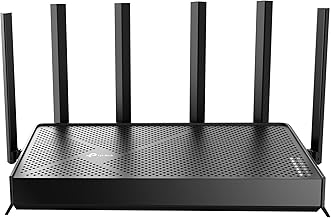 | TP-Link Tri-Band BE9700 WiFi 7 Router (Archer BE600)TP-Link Tri-Band BE9700 WiFi 7 Router (Archer BE600) | Power users who want a higher-end TP-Link Wi‑Fi 7 alternative with tri-band design | Tri-band Wi‑Fi 7 approach for demanding households and newer device fleets | View on Amazon |
1) TP-Link AXE5400 Tri-Band WiFi 6E Router, 2025 PCMag Editors' Choice — Most homes wanting a modern Wi‑Fi 6E upgrade without going full Wi‑Fi 7
If you want one router that fits a wide range of households in 2027, this is a strong starting point. It balances a modern Wi‑Fi generation with practical features and dependable coverage.
Best for: Most homes wanting a modern Wi‑Fi 6E upgrade without going full Wi‑Fi 7
Key feature: Tri-band Wi‑Fi 6E (adds 6GHz) for cleaner wireless lanes in busy households
Watch for: Confirm your devices can use 6E (Wi‑Fi 6E clients). Also check Ethernet port needs and verify modem/ISP compatibility plus any app/account requirements before ordering.
🧐 Quick verdict: Best overall baseline for most buyers—fast enough for typical gig-class plans and a smart step up if your 5GHz band is crowded.
| Pros ✅ | Cons ⚠️ |
|---|---|
| ✅ Tri-band design helps in busy households with lots of devices | ⚠️ The 6GHz benefit depends on having Wi‑Fi 6E-capable devices and reasonable range |
| ✅ Strong all-around choice for streaming, WFH, and gaming households | ⚠️ Still requires good placement (and sometimes wired backhaul) for best results |
| ✅ Great “reference point” router for comparing Wi‑Fi 6 vs 6E vs 7 | ⚠️ Verify ports, parental controls/security features, and any subscription extras you may or may not want |
Why it’s a top pick: For many households, Wi‑Fi 6E is the “sweet spot” upgrade. It can reduce congestion versus older routers, while avoiding the higher cost and device-compatibility tradeoffs of going all-in on Wi‑Fi 7 right now.
Decision bullets
- Use-case check: best if you have multiple active users (streaming + calls + gaming) and want more breathing room than a basic Wi‑Fi 6 router.
- Specification check: verify tri-band/6E support and confirm you have (or plan to buy) 6E-capable devices to benefit from 6GHz.
- Ownership check: confirm app setup, security/parental-control expectations, firmware updates, and whether any “advanced security” features are subscription-based.
SelectRanker tip: If your internet plan is fast but Wi‑Fi feels inconsistent, placement and band congestion are often the real problem. In crowded areas, 6E can help—but only when your devices can use it.
2) TP-Link AX1800 WiFi 6 Router (Archer AX21 V5) — Best value for apartments/smaller homes and typical streaming + work-from-home
This pick suits buyers who want a straightforward, modern router that covers the basics well. You avoid paying extra for 6E/7 features your devices may not use.
Best for: Best value for apartments/smaller homes and typical streaming + work-from-home
Key feature: Solid Wi‑Fi 6 performance at a price that makes sense for most plans and devices
Watch for: If you have dead zones or a long, multi-floor layout, a single router (even a good one) may not solve it. In that case, consider mesh instead: Best Mesh Wifi System.
🧐 Quick verdict: Best value when you want reliable Wi‑Fi 6 and don’t need to pay for 6GHz or Wi‑Fi 7.
| Pros ✅ | Cons ⚠️ |
|---|---|
| ✅ Strong price/performance for typical households | ⚠️ No 6GHz band (so it can’t deliver Wi‑Fi 6E benefits) |
| ✅ Great fit if most of your devices are Wi‑Fi 5/6 | ⚠️ Single-router coverage can struggle in long homes, brick/plaster walls, or multi-floor layouts |
| ✅ Easier “sensible upgrade” vs keeping an aging ISP router | ⚠️ Verify Ethernet port needs (gaming console/PC, NAS, smart TV) before buying |
Why it’s a top pick: Most buyers don’t need the newest wireless standard to get a big improvement. With the right placement, a well-chosen Wi‑Fi 6 router can be the best real-life upgrade from an older router—especially if your plan isn’t multi-gig and your devices are mostly Wi‑Fi 6 or older.
Decision bullets
- Use-case check: ideal for smaller spaces, fewer dead zones, and typical streaming/WFH usage.
- Tradeoff check: you save money versus 6E/7, but you also give up access to 6GHz and the newest Wi‑Fi 7 features.
- Compatibility check: confirm your modem/ISP setup, app requirements, and the number/type of Ethernet connections you want to run wired.
SelectRanker tip: When coverage is the real problem (not speed), a cheaper router upgrade can disappoint. In practice, mesh placement often beats “more specs” in the wrong spot.
3) NETGEAR Nighthawk WiFi 7 Router RS90, Up to 2,000 sq ft, 3.6 Gbps — Early Wi‑Fi 7 shoppers who want a more budget-conscious step into the new standard
If you’re shopping “Wi‑Fi router 2027” because you specifically want Wi‑Fi 7, this is the most sensible entry point on our list. It makes the most sense if you already own (or plan to buy) Wi‑Fi 7 laptops and phones.
Best for: Early Wi‑Fi 7 shoppers who want a more budget-conscious step into the new standard
Key feature: Wi‑Fi 7 router option aimed at newer devices without jumping to the priciest tier
Watch for: Wi‑Fi 7 benefits depend on client devices and your environment. When most devices are Wi‑Fi 5/6, you may not feel a big difference versus a strong Wi‑Fi 6E router.
🧐 Quick verdict: Best for getting into Wi‑Fi 7 without overbuying—just make sure your devices and internet plan can take advantage.
| Pros ✅ | Cons ⚠️ |
|---|---|
| ✅ Good fit for buyers intentionally upgrading to Wi‑Fi 7 | ⚠️ Without Wi‑Fi 7 client devices, the upgrade can feel small |
| ✅ Helps future-proof a growing device fleet (new laptops/phones) | ⚠️ Placement and interference still matter as much as the standard on the box |
| ✅ Useful option for speed + latency-conscious households | ⚠️ Verify port needs (wired gaming/NAS) and any security/subscription add-ons before committing |
Why it’s a top pick: Wi‑Fi router reviews often make Wi‑Fi 7 sound like an automatic win. However, it’s really a system upgrade—your router, your client devices, and your home environment determine whether you see a meaningful improvement.
Decision bullets
- Performance check: list your Wi‑Fi 7-capable devices (or planned upgrades). If you have none, consider Wi‑Fi 6E instead.
- Compatibility check: confirm modem/ISP compatibility and whether you need features like multi-gig Ethernet, extra LAN ports, or specific app controls.
- Workflow check: plan placement and consider wired connections for stationary high-demand devices (PC/console/TV/NAS) to reduce wireless load.
SelectRanker tip: If your main “feel” problem is dead zones, Wi‑Fi 7 won’t fix physics. In many homes, mesh placement or an additional access point matters more than the standard.
4) Amazon eero 6 mesh wifi router – Supports internet plans up to 900 Mbps, Coverage up to 1,500 sq. ft., Connect 75+ devices, 1-pack — Simple whole-home coverage with an easy app setup (and room to expand to mesh)
If your priority is “make Wi‑Fi work everywhere” with minimal tinkering, this pick focuses on simplicity and expandability. Start with one unit, then add more later if your layout demands it.
Best for: Simple whole-home coverage with an easy app setup (and room to expand to mesh)
Key feature: Mesh-friendly platform: start with one unit, add nodes later if you need more reach
Watch for: A single unit may not cover a large or multi-floor home by itself. If you already know you need multiple nodes, compare full kits here: Best Mesh Wifi System.
🧐 Quick verdict: Best for buyers who value easy setup and a clear path to whole-home coverage more than chasing the newest Wi‑Fi spec.
| Pros ✅ | Cons ⚠️ |
|---|---|
| ✅ Great “set it and forget it” style for many households | ⚠️ Best results may require adding extra nodes (additional cost) |
| ✅ Easy path to expanding coverage room-by-room | ⚠️ Mesh performance can depend on node placement and whether you can use wired backhaul |
| ✅ Helpful for tricky layouts where a single router struggles | ⚠️ Verify app/account requirements and any optional subscription services before buying |
Why it’s a top pick: Many “router problems” are coverage problems. Mesh-style systems (or mesh-expandable platforms) are often the most reliable way to reduce dead zones, especially in long homes, multi-floor layouts, or places with signal-blocking materials.
Decision bullets
- Fit check: map your dead zones and decide where you could place additional nodes if needed (hallways, stair landings, central rooms).
- Capacity check: confirm the plan speed you pay for and how many devices you routinely have online at once.
- Setup check: check modem compatibility, whether you need bridge mode, and whether you can run Ethernet for wired backhaul (nice-to-have for mesh stability).
SelectRanker tip: In homes with multiple “Wi‑Fi walls” (brick, plaster, tile, metal ducts), mesh placement usually beats a single powerful router placed in the corner.
5) TP-Link Tri-Band BE9700 WiFi 7 Router (Archer BE600) — Power users who want a higher-end TP-Link Wi‑Fi 7 alternative with tri-band design
This alternative pick is for buyers who want a more premium-leaning Wi‑Fi 7 approach. It’s a good fit if you’re building around newer devices and want room to grow.
Best for: Power users who want a higher-end TP-Link Wi‑Fi 7 alternative with tri-band design
Key feature: Tri-band Wi‑Fi 7 approach for demanding households and newer device fleets
Watch for: Verify whether your internet plan, modem, and wired devices can benefit. In particular, check multi-gig WAN/LAN needs, Ethernet cable category, and the number of wired ports you require.
🧐 Quick verdict: Best “upgrade path” option if you’re intentionally moving to Wi‑Fi 7 and want a more premium feature mix than the budget Wi‑Fi 7 pick.
| Pros ✅ | Cons ⚠️ |
|---|---|
| ✅ Strong alternative if you want Wi‑Fi 7 and a tri-band approach | ⚠️ Can be overkill if your devices are mostly Wi‑Fi 5/6 or your plan is modest |
| ✅ Better fit for demanding households with lots of simultaneous use | ⚠️ Router placement, interference, and client device quality still determine results |
| ✅ Useful for buyers thinking about long-term device upgrades | ⚠️ Verify port count/speeds, app requirements, and any optional security subscriptions |
Why it’s a top pick: In a Wi‑Fi router comparison, the best premium choice is the one that matches your real bottleneck. Focus on wired port needs, device count, congestion, and future device upgrades—not simply the most expensive router available.
Decision bullets
- Budget check: make sure you’re paying for benefits you can use (Wi‑Fi 7 clients, fast plan, and/or multi-gig wired devices).
- Use-case check: best for heavier households—multiple 4K streams, frequent large downloads, gaming, and lots of smart devices.
- Risk check: confirm return policy (routers can be finicky in specific environments), and check for recurring-cost features you may not want.
SelectRanker tip: If you’re also upgrading a computer to take advantage of faster Wi‑Fi, compare Wi‑Fi capability in your next laptop too: Best Laptop and Laptop Specs Guide.
How we evaluate best Wi-Fi router options
The SelectRanker scoring lens
To recommend routers that make sense for real homes (not just spec sheets), we focus on what changes everyday performance and ownership:
- Use-case match, including home size/layout, number of users/devices, gaming/streaming/WFH needs, and whether mesh expansion is likely
- Useful specifications, focusing on Wi‑Fi generation (6/6E/7), band support, and the practical limits of range and interference
- Compatibility and setup, including modem/ISP compatibility, app/account requirements, Ethernet port needs, and whether you can place the router centrally
- Usability and ownership, including app quality, guest network controls, parental controls/security options, and how easy it is to troubleshoot
- Ownership risk, including firmware/security updates, subscriptions where relevant, warranty/support, and return friction
Before you buy: best Wi-Fi router
Skip or slow down if these apply
Don’t buy this if…
- You haven’t identified whether your problem is coverage (dead zones) or capacity (too many devices) or speed (plan/router limits).
- You’re buying Wi‑Fi 6E or Wi‑Fi 7 without checking whether your key devices support those standards.
- You haven’t checked modem/ISP compatibility (and whether your ISP gateway needs bridge mode).
- You haven’t confirmed wired needs (PC/console/NAS/smart TV), including how many Ethernet ports you need.
- The listing is unclear about app/account requirements, optional subscriptions, firmware update expectations, returns, or warranty support.
Good signs you are ready to buy
Buy this if…
- You know your layout and can place the router (or mesh nodes) in sensible locations.
- You’ve matched the Wi‑Fi generation to your devices (Wi‑Fi 6 vs 6E vs 7) using: Wifi 6 Vs Wifi 6e Vs Wifi 7.
- You’ve decided whether you should be shopping routers or mesh systems using: Mesh Wifi Vs Router.
- You want a shortlist that prioritizes real-world fit over marketing claims.
Buyer’s guide to best Wi-Fi router
Start with the home layout and the real problem you’re solving
Router shopping goes smoother when you label your issue correctly. Dead zones usually point to placement/layout problems (often solved by mesh). Meanwhile, buffering and lag during busy times can signal congestion or capacity limits. If your plan is fast but Wi‑Fi is slow, older devices, weak 5GHz reach, or an overloaded router may be the cause.
Performance and features: compare what actually changes your experience
In Wi-Fi router reviews, speed ratings can be misleading. Instead, focus on stable performance where you actually use devices, plus the bands, ports, and controls that fit your household.
- Coverage first: a “slower” router in the right place beats a fast router in the wrong place.
- Wi‑Fi generation: Wi‑Fi 6 is the value baseline, Wi‑Fi 6E adds 6GHz for less congestion (at shorter range), and Wi‑Fi 7 is best when you have Wi‑Fi 7 clients.
- Wired ports: if you can wire stationary devices, you reduce Wi‑Fi load and improve consistency.
- Expandability: if your home is hard to cover, prioritize mesh-expandable options.
Compatibility, setup, and ecosystem checks that prevent returns
Before ordering, verify modem/ISP compatibility and whether you’re replacing an ISP gateway or adding behind it. Next, confirm you’re comfortable with app-based setup and any account requirements. Finally, check you have a realistic placement plan (central location, away from obstructions) and enough Ethernet ports for your wired gear.
If you’re debating router vs mesh, use this guide to understand the tradeoff clearly: Mesh Wifi Vs Router.
Security features and subscriptions: know what’s included
Many routers advertise security, parental controls, and device monitoring. Some features are included, while others may require a subscription. To avoid surprises, decide what you actually need (guest network, basic parental controls, threat alerts) and confirm what’s free vs paid before you buy.
Maintenance and long-term ownership
Routers are “set and forget” until they aren’t. Long-term satisfaction often comes down to firmware updates, stability, and support. It also helps to have a simple reset/recovery path if you change ISPs or move.
Warranty, returns, and long-term value
Wi‑Fi performance depends on your environment, so returns matter more than many buyers expect. Before you commit, confirm return terms, warranty coverage, and any support requirements. For best security and stability, follow the manufacturer’s setup guidance and keep firmware updated.
Decision table: buyer concern → what it means → what to check
| Concern | Likely cause | What to check before buying |
|---|---|---|
| Wi‑Fi is fast near the router but weak in bedrooms/office | Coverage/placement issue, signal-blocking materials, or layout challenges | Consider mesh expansion, plan node placement, and check whether wired backhaul is possible |
| Internet plan is fast but Wi‑Fi feels slow | Older Wi‑Fi standard on router or client devices; congestion on 2.4/5GHz | Match router generation to devices (Wi‑Fi 6 vs 6E vs 7) and verify device capabilities |
| Lag spikes during busy evenings | Too many devices competing; router capacity limits; interference | Prioritize tri-band options, wire stationary devices, and check QoS/traffic management features |
| Gaming feels inconsistent | Weak signal at the console/PC, interference, or overloaded Wi‑Fi | Use Ethernet where possible; verify port needs; place router centrally; consider mesh for coverage |
| Setup is confusing or keeps failing | ISP gateway conflicts, wrong mode, or app/account friction | Confirm modem/ISP compatibility, bridge mode needs, and setup requirements before ordering |
| Ownership becomes expensive | Optional security/parental-control subscriptions or add-on nodes | Check what’s included vs paid, and estimate total cost if you later expand to mesh |
| Spec sheets feel impossible to compare | Marketing speed numbers don’t translate directly to your home | Return to the basics: coverage plan, device support, bands, ports, expandability, and support |
Use the related SelectRanker guides below for deeper category-specific sizing, fit, compatibility, setup, maintenance, and ownership questions.
Common mistakes and quick wins
Quick wins before you buy
- Place the router like you mean it. A central, elevated spot away from dense obstructions often matters more than paying for a faster model.
- Check your devices. If your phone or laptop is Wi‑Fi 5, a Wi‑Fi 7 router won’t magically make that device faster.
- Wire the “anchors.” PCs, consoles, smart TVs, and NAS devices benefit from Ethernet and free up Wi‑Fi for everything else.
- Read the bad reviews for patterns. Look for repeated complaints about stability, app issues, forced subscriptions, or difficult returns.
Common mistakes
- Buying the newest standard without having compatible devices to benefit.
- Trying to solve dead zones with “more speed” instead of better placement or mesh expansion.
- Ignoring Ethernet needs and then adding an extra switch or adapters later.
- Not checking modem/ISP gateway compatibility and required modes (router vs bridge).
- Overlooking optional subscriptions for security/parental-control features you assumed were included.
For deeper context, continue with the related SelectRanker guides covering sizing, specifications, compatibility, setup, maintenance, and closely related product comparisons for this topic.
Related SelectRanker guides
- Explore the broader SelectRanker category guide for this product type: Best Products hub
- Browse more tech picks and comparisons: Tech hub and Networking hub
- Understand Wi‑Fi generations before you choose: Wifi 6 Vs Wifi 6e Vs Wifi 7
- Decide between mesh and a standard router: Mesh Wifi Vs Router
- If you’re leaning mesh, compare our top picks: Best Mesh Wifi System
FAQs
1) What matters most when choosing the best Wi-Fi router?
Start with coverage where you actually use Wi‑Fi, then match the Wi‑Fi generation to your devices (6 vs 6E vs 7), and confirm modem/ISP compatibility. After that, check Ethernet ports, mesh expandability, app controls, and whether any security or parental-control features require a subscription.
2) Should I buy Wi‑Fi 6, Wi‑Fi 6E, or Wi‑Fi 7 in 2027?
It depends on your devices and your problem. Wi‑Fi 6 is still a strong value baseline for many homes. Wi‑Fi 6E can help in congested areas if you have 6E-capable devices. Wi‑Fi 7 makes the most sense when you already own Wi‑Fi 7 clients (newer phones/laptops) and you’re trying to improve performance under heavier load.
3) When should I choose a mesh system instead of a router?
Choose mesh when you have dead zones, a long layout, or multiple floors that a single router can’t cover reliably. A traditional router is often fine for smaller spaces with fewer obstacles. This guide breaks it down clearly: Mesh Wifi Vs Router.
4) What compatibility checks prevent the most router returns?
Confirm modem/ISP compatibility (and whether you need bridge mode), your internet plan speed, and where the router will physically sit. Next, count how many wired devices you’ll connect and what port speeds you need. Also check whether setup requires an app/account and whether key features (security/parental controls) are included or subscription-based.
5) Will a new router make my internet faster?
It can improve Wi‑Fi speed and stability, especially if your current router is old, poorly placed, or overloaded. Still, it can’t exceed what your ISP plan delivers. Your device’s Wi‑Fi capability also matters, since an older laptop or phone may be the limiting factor.
6) Is Ethernet still worth using for gaming and streaming?
Yes, when practical. Ethernet usually delivers lower latency and more consistent performance, and it reduces Wi‑Fi congestion for other devices. Even with a top Wi‑Fi router, wiring stationary high-demand devices is one of the biggest quick wins.
7) Are router security subscriptions necessary?
Basic security (updates, strong passwords, and guest networks) matters most. Paid security suites or advanced parental controls can be useful for some households, but you should confirm what’s included for free and what requires a subscription so you’re not surprised later.
8) What should I double-check right before ordering?
Double-check the exact model, Wi‑Fi generation (6/6E/7), band support, modem/ISP compatibility, Ethernet port needs, mesh expandability, app/account requirements, subscription extras, warranty/returns, and repeated buyer complaints about stability or setup.
Final verdict on best Wi-Fi router
If you want the safest first choice, start with Pick #1 because it’s the most balanced option for modern coverage, congestion management, and everyday usability.
Choose Pick #2 when you want the best value Wi‑Fi 6 upgrade for typical households and smaller spaces.
Pick #3 fits you when you specifically want Wi‑Fi 7 on a tighter budget and have (or plan to buy) Wi‑Fi 7 devices.
Go with Pick #4 when easy whole-home coverage and an upgrade path to mesh matters more than chasing the newest spec.
Choose Pick #5 when you want a more premium Wi‑Fi 7 alternative and you’re building around a newer, higher-demand device fleet.
For more context, continue with the related SelectRanker category hub and guides listed above.